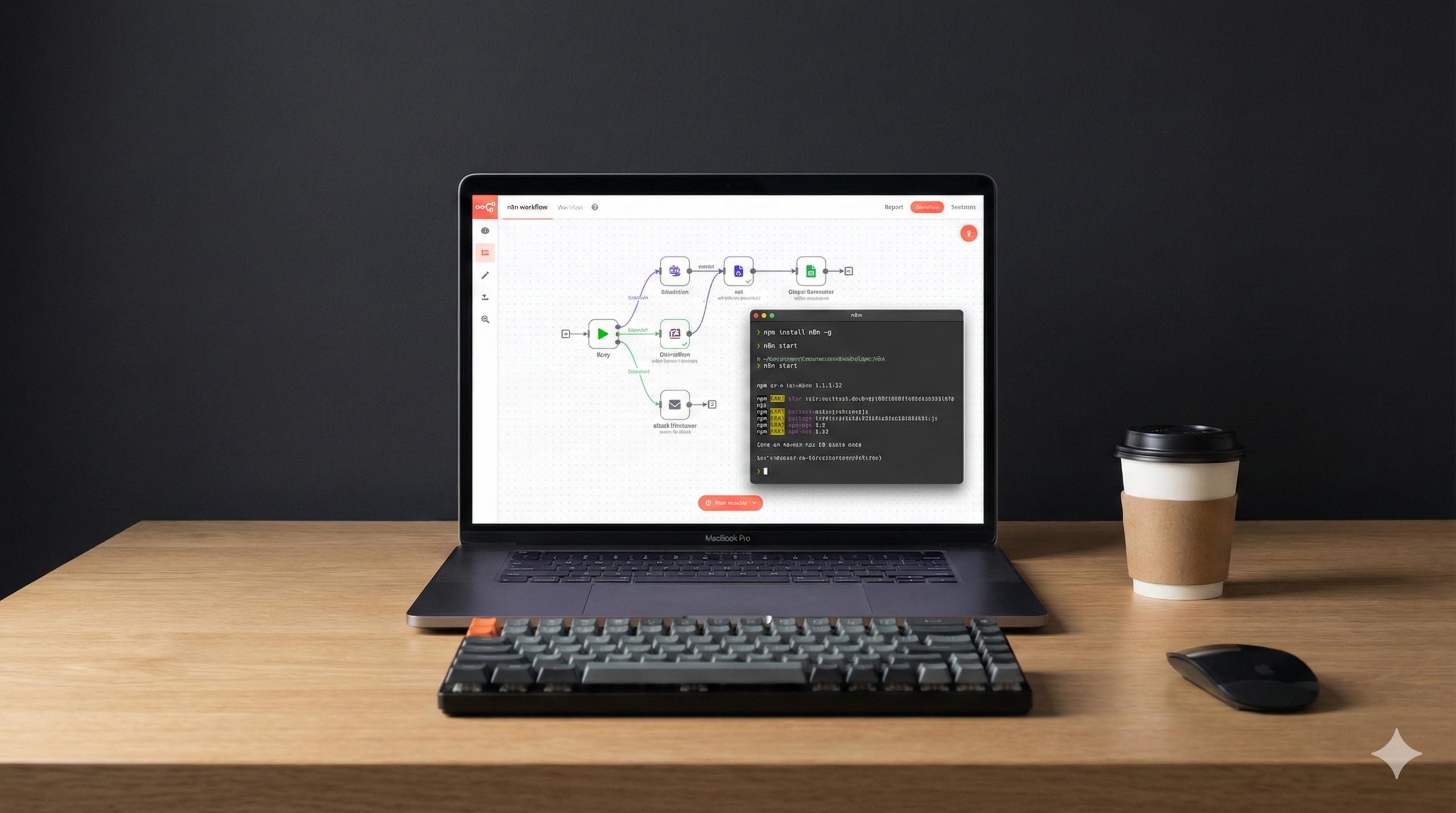
Running n8n locally is easy.
Running it on a machine that stays online, survives reboots, uses a proper database, accepts public webhooks over HTTPS, and doesn’t unnecessarily expose your home network is a different problem entirely.
That was the setup I wanted.
Instead of paying for another VPS, I had an Ubuntu laptop available and decided to turn it into an always-on n8n home server.
But I didn’t want to simply run:
npx n8nand call it a server.
I wanted something closer to a proper self-hosted deployment:
- Docker-based
- PostgreSQL instead of the default local database
- External task runners
- HTTPS
- Public webhooks
- No router port forwarding
- Automatic recovery after reboot
- Proper secrets management
- Backups and restore procedures
After working through the deployment and fixing the problems I encountered along the way, this is the architecture I ended up with.
Important: This turns a physical computer into a self-hosted home server. It can behave a lot like a small VPS, but it obviously doesn’t give you datacenter-level uptime.
What We’re Building
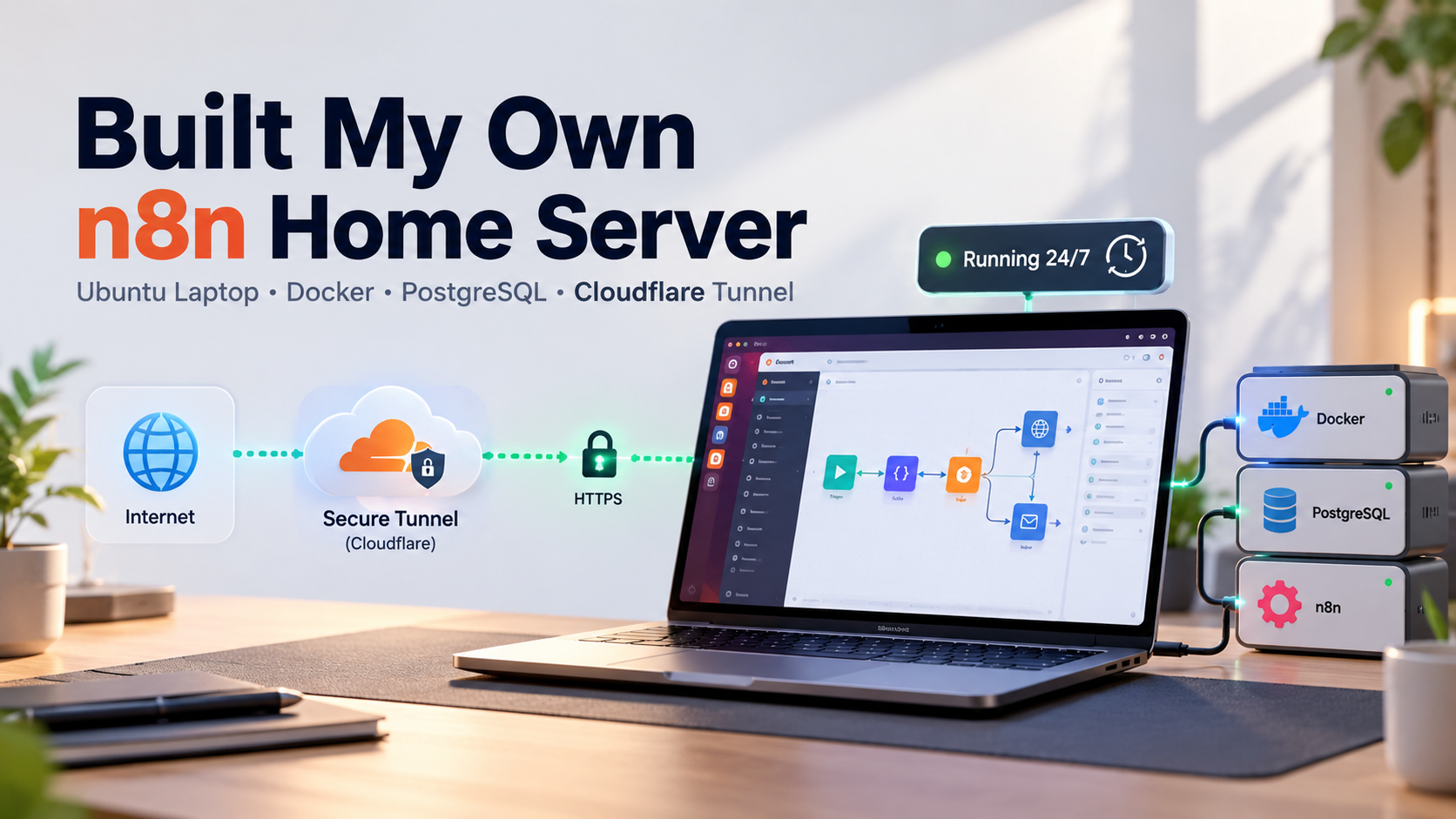
The final request path looks like this:
Browser / Webhook
       ↓
Cloudflare HTTPS
       ↓
Cloudflare Tunnel
       ↓
cloudflared
       ↓
      n8n
       ↓
 PostgreSQL
There is also a separate n8n task runner connected to n8n through its own private Docker network.
The important part is what is not in that diagram:
There is no router port forwarding.
PostgreSQL isn’t exposed to the internet.
Port 5678 isn’t exposed to the internet.
And Cloudflare Tunnel establishes its connection outbound from the server rather than requiring someone on the internet to connect directly to my home IP. The deployment specifically keeps PostgreSQL and the external task runner on private Docker networks while exposing n8n only through the tunnel.
That also makes the setup much friendlier if your ISP uses CGNAT or changes your public IP.
What You Need
Before starting, you’ll need:
- An Ubuntu machine
- A Cloudflare account
- A domain managed through Cloudflare
- Docker Engine and Docker Compose
- A little patience
The deployment was designed for Ubuntu 22.04, 24.04, or 26.04 LTS on a 64-bit Intel/AMD or ARM64 machine. For an always-on laptop, wired Ethernet and a UPS are preferable, and the machine should remain connected to power with adequate ventilation.
You’ll also want a password manager.
There are several credentials in this setup that you genuinely do not want living in random text files, screenshots, or your notes app.
1. Prepare Ubuntu for Server Duty
A laptop isn’t normally designed to behave like a server.
The first problem is that it likes doing laptop things—particularly going to sleep when you close the lid.
Start by updating Ubuntu:
sudo apt update
sudo apt full-upgrade -y
sudo apt install -y ca-certificates curl openssl nano ufw unattended-upgrades
Then enable network time synchronization:
sudo timedatectl set-ntp true
timedatectl status
Correct system time matters more than it might seem. TLS certificates, OAuth callbacks, scheduled workflows, logs, and authentication can all behave strangely if the system clock is wrong.
Next, disable sleep and hibernation.
I used a systemd-logind override so closing the laptop lid doesn’t suspend the server, and also masked the normal sleep targets.
You should also disable Automatic Suspend from Ubuntu’s Power settings.
And don’t ignore the physical side of this setup.
If the laptop is going to run 24/7, give it ventilation. Don’t leave it buried under papers or sitting on fabric, and use a battery charge limit if the firmware supports one.
A UPS is also useful if your power isn’t perfectly reliable.
2. Lock Down the Host First
Before putting applications on the machine, I configured UFW with a very simple policy:
sudo ufw default deny incoming
sudo ufw default allow outgoing
sudo ufw enable
That means unsolicited incoming connections are denied.
Cloudflare Tunnel doesn’t require you to open a firewall port because the tunnel connection starts from the Ubuntu machine toward Cloudflare.
If you need SSH, don’t automatically expose port 22 to the internet.
Restrict it to your home LAN instead.
For example:
sudo ufw allow from 192.168.1.0/24 to any port 22 proto tcpBut use your actual LAN subnet, not that example blindly.
And one rule I kept throughout this deployment:
Do not forward ports 80, 443, 5678, 5432, or 22 from the router.
3. Install Docker Properly
I installed Docker Engine and the Compose plugin using Docker’s official Ubuntu repository rather than relying on whatever older Docker package happened to be available in Ubuntu’s default repositories.
Once installed:
sudo systemctl enable --now docker
sudo docker run --rm hello-world
sudo docker compose version
There are two security details here worth calling out.
Don’t casually add your user to the docker group
It’s convenient because you stop typing sudo.
But Docker group membership effectively gives that account root-level capabilities.
For this server, I kept Docker administration behind sudo.
Configure Docker log rotation
A server that stays online indefinitely will also keep producing logs indefinitely.
Without rotation, one noisy service can slowly fill the disk.
I configured Docker’s json-file logging driver with limits so old container logs are rotated automatically.
Not glamorous.
Very useful six months later.
4. Create a Cloudflare Tunnel
This is one of my favorite parts of the architecture.
Instead of opening your router and sending internet traffic directly toward the Ubuntu laptop, Cloudflare Tunnel creates encrypted outbound connections from cloudflared to Cloudflare.
That means you don’t need:
- A static public IP
- Router port forwarding
- Direct exposure of n8n’s port
Inside Cloudflare, create a remotely managed tunnel and choose cloudflared as the connector.
I named mine:
n8n-homeCloudflare gives you a long tunnel token.
Treat that token like a password.
Don’t paste it into GitHub, screenshots, tutorials—or an AI chat for that matter.
At this stage, I created the tunnel but didn’t publish the n8n hostname yet.
There’s a reason for that.
I wanted to create the n8n owner account locally before making the login page publicly reachable.
5. Build the n8n Stack
My stack contains four services:
PostgreSQL
n8n
n8n external task runner
cloudflared
I keep everything under:
/opt/n8nwith a separate protected directory for secrets.
The environment contains pinned versions rather than floating latest tags.
That matters.
If this server is running real automations, I don’t want a casual image pull unexpectedly introducing a breaking version.
PostgreSQL Instead of the Default Database
PostgreSQL stores the n8n users, workflows, credentials metadata, and execution data.
Rather than allowing n8n to connect as the PostgreSQL administrator, the deployment creates a restricted application role specifically for n8n.
The database sits on a Docker network that is marked internal.
In other words:
Internet → PostgreSQLis not a valid path.
And it shouldn’t be.
Use File-Based Secrets
The stack keeps sensitive values such as:
- PostgreSQL administrator password
- n8n database password
- n8n encryption key
- Cloudflare tunnel token
in protected files rather than dumping everything directly into the Compose file.
One credential deserves special attention:
N8N_ENCRYPTION_KEY
Back this up.
Seriously.
n8n uses this key to encrypt stored credentials. If you restore your database without the encryption key that originally encrypted those credentials, having the database alone won’t magically decrypt them.
The guide therefore treats the encryption key as part of the recovery set, not an optional configuration detail.
6. Run n8n with an External Task Runner
The deployment also uses n8n’s external task-runner architecture.
Instead of executing Code node tasks directly inside the main n8n process, a separate runner handles them.
The runner is isolated on its own private Docker network and is configured with additional hardening such as:
- read-only filesystem
- dropped Linux capabilities
no-new-privileges- temporary writable
/tmp - authentication between n8n and the runner
The n8n container itself also disables or restricts several higher-risk capabilities in this baseline, including community packages, the public API, local-file-oriented nodes, and direct environment access from nodes. The Compose configuration additionally enables SSRF protection and execution-data pruning.
Not every n8n installation needs exactly these restrictions.
But for an internet-reachable home server, I prefer starting restrictive and opening features deliberately when I actually need them.
7. Create the Owner Account Before Going Public
This was a small design decision that I think is worth copying.
For the first login only, I temporarily bind n8n to:
127.0.0.1:5678Notice the address.
Not:
0.0.0.0:5678127.0.0.1 means only the Ubuntu laptop itself can reach that port.
So I can open:
http://127.0.0.1:5678on the Ubuntu machine, create the owner account, choose a strong password, and enable MFA before making n8n publicly accessible.
The guide recommends a unique password of at least 20 random characters and saving the MFA recovery codes.
Once the owner account works, the temporary local port mapping goes away.
8. Switch to Production
Now the actual production stack can start.
The temporary first-login Compose overlay is removed and the base stack starts all four services:
sudo docker compose up -d --waitAt this stage:
- PostgreSQL becomes healthy
- n8n becomes healthy
- the task runner starts
- cloudflared connects to Cloudflare
And importantly:
http://127.0.0.1:5678should stop working.
That’s intentional.
The production stack publishes no n8n host port.
9. Publish n8n Through Cloudflare
Now return to the Cloudflare Tunnel configuration and create the published application route.
Your public hostname might look like:
n8n.example.comBut the backend service URL should be:
http://n8n:5678Not:
http://localhost:5678Why?
Because cloudflared runs inside its own Docker container.
Inside that container, localhost refers to cloudflared itself, not n8n.
Docker’s internal DNS resolves the service name n8n to the correct container.
For Cloudflare I also configured:
- Full (strict) SSL/TLS
- Always Use HTTPS
- TLS 1.3
- Minimum TLS 1.2
- Cache bypass for the n8n hostname
You don’t want Cloudflare caching dynamic editor, API, or webhook responses.
10. Don’t Forget OAuth Redirect URLs
This is one of those details that can make an otherwise perfect deployment feel broken.
If you originally configured an OAuth integration while n8n was running locally, the provider may still have something like:
http://localhost:5678/...registered as its callback.
Your production callback should instead look like:
https://n8n.example.com/rest/oauth2-credential/callbackUpdate that URL in Google, Microsoft, GitHub, or whichever OAuth provider you’re using.
Hostname, path, protocol, and even small URL differences matter here.
11. Verify That Nothing Is Accidentally Exposed
Don’t stop when the homepage loads.
Verify the architecture.
Check your containers:
sudo docker compose psThen inspect host port mappings:
sudo docker ps --format 'table {{.Names}}\t{{.Ports}}'Seeing something like:
5678/tcpinside Docker is fine.
Seeing:
0.0.0.0:5678->5678/tcpin this design is not.
The same applies to PostgreSQL on 5432.
The whole point is that the Cloudflare Tunnel is the ingress path.
12. Backups Are Part of the Deployment
A server isn’t finished when it starts.
It’s finished when you know how to recover it.
For this deployment, a useful backup needs four things:
- A PostgreSQL dump
- The n8n data volume
- The Compose/configuration files
- The matching n8n encryption key
The guide explicitly warns that a backup stored only on the same laptop doesn’t protect you from disk failure or theft.
My backup process also generates SHA-256 checksums so copied backups can be verified before a restore.
And the important part:
Move the backup off the laptop.
Preferably to encrypted storage.
A backup sitting beside the original data on the same SSD is mostly emotional support.
I also schedule the backup to run daily.
13. Test Your Restore Before You Need It
This is the part people love skipping.
A backup you’ve never restored is a theory.
The recovery process restores:
- the protected configuration
- the n8n data volume
- the PostgreSQL database
- the original encryption key
onto a clean replacement deployment.
Once restored, you should verify that:
- n8n starts
- your workflows appear
- saved credentials decrypt
- Cloudflare reconnects
- the public hostname works
I’d run a test restore on another machine periodically rather than discovering a broken backup procedure during an actual disk failure.
Updating the Server Safely
I use pinned image versions for this setup.
When updating n8n:
- Take a backup.
- Read the release notes and breaking changes.
- Change the pinned n8n version.
- Keep the n8n task runner on the same version.
- Validate the Compose configuration.
- Pull the new image.
- Recreate the services.
- Test a workflow and inspect the logs.
There’s another important distinction with PostgreSQL.
Updating from one PostgreSQL 16 patch release to another is not the same thing as jumping from PostgreSQL 16 to 17 or 18.
A PostgreSQL major-version change needs a proper database migration rather than simply changing the Docker tag.
A Few Problems I Hit That Are Worth Knowing
A few issues are particularly easy to misdiagnose.
docker compose config --quiet prints nothing
That’s success.
It’s supposed to be quiet when the Compose configuration is valid.
Cloudflare shows a 502
Check:
Is n8n healthy?
Is cloudflared running?
Does the tunnel route point to http://n8n:5678?
Are n8n and cloudflared on the same Docker network?
OAuth keeps showing localhost
You’re probably still running the temporary first-login configuration rather than the production stack.
PostgreSQL initialization failed once
Be careful here.
PostgreSQL’s initialization scripts normally run when the data directory is first created. Simply fixing the script and restarting the existing volume doesn’t necessarily rerun it.
And don’t solve every PostgreSQL problem by deleting the volume.
That’s the Docker equivalent of fixing a headache with a guillotine.
A secret says permission denied
Check the permissions on both the parent secrets directory and the individual mounted files.
The host-side directory can remain inaccessible to normal users while individual bind-mounted secret files still need to be readable by the non-root processes inside their containers.
My Security Checklist
Before calling this deployment complete, I’d verify at least these:
- UFW is enabled with default-deny incoming.
- SSH is disabled or LAN-only.
- There is no router port forwarding.
- n8n and PostgreSQL publish no production host ports.
- Cloudflare Tunnel is the only public ingress path.
- HTTPS works on the public hostname.
- The n8n owner uses a long unique password.
- MFA is enabled.
- Community packages stay disabled unless deliberately reviewed.
- Public webhooks use actual authentication or signature verification.
- The n8n encryption key is backed up.
- Backups are copied off the machine.
- A restore has been tested.
- Docker starts automatically after reboot.
- All four services recover after a real system reboot.
One thing to understand about this particular baseline is that it doesn’t put Cloudflare Access/Zero Trust in front of the n8n editor. That means the login page itself remains publicly reachable; n8n credentials and MFA are therefore important controls. Cloudflare Access can be added later, but public webhook paths then need to be planned carefully so you don’t accidentally put an identity login in front of your webhook consumers. The original deployment calls this distinction out explicitly.
Final Thoughts
What I like about this setup is that it sits somewhere between casually running n8n on a laptop and renting a full production server.
You get:
Ubuntu
   ↓
Docker Compose
   ↓
PostgreSQL + n8n + Task Runner
   ↓
Cloudflare Tunnel
   ↓
Public HTTPS n8n instance
without directly opening your home network to n8n traffic.
It’s still a home server.
Your electricity can fail. Your ISP can go down. The laptop can die. The SSD can fail.
Cloudflare Tunnel doesn’t magically turn a spare laptop into AWS.
But for personal automations, development, learning, and workloads where you understand those limitations, it’s a surprisingly capable setup.
And the biggest lesson I took from building it was this:
Getting n8n to run is the easy part.
The real work is making sure it starts again tomorrow, doesn’t expose things it shouldn’t, and can be recovered when something eventually breaks.
That’s what turns a local installation into a server.
Conclusion
If you’re anything like me, the idea probably started pretty simply: I just want n8n running all the time without paying for another server.
But once you start building it properly, you realize the real challenge isn’t getting n8n to launch. It’s making the whole setup reliable enough that you can actually trust it—after a reboot, after an update, when a webhook comes in at 2 AM, or when something eventually goes wrong.
That’s what made this setup worth the effort for me.
Instead of letting an old Ubuntu laptop sit unused, I turned it into something genuinely useful: a private automation server running in my own home, with PostgreSQL, Docker, HTTPS, secure access through Cloudflare Tunnel, proper backups, and no need to expose ports on my router.
And there’s something strangely satisfying about that.
Not because it’s the most powerful server in the world. It isn’t. Not because it can compete with a datacenter. It can’t.
It’s satisfying because you built it yourself, you understand how it works, and you’re in control of it.
If you decide to build your own version of this setup, don’t feel like you have to understand everything on day one. Take it one piece at a time. Get Ubuntu stable. Get Docker working. Bring up n8n. Add PostgreSQL. Secure it. Then make it public only when you’re comfortable with what you’ve built.
You’ll probably hit an error somewhere along the way. I certainly did.
But once you close that laptop lid, walk away, and later realize your workflows are still running exactly as they should, that little bit of troubleshooting suddenly feels worth it.
Sometimes the best server is simply the machine you already have.
Important Note:
I’ve also attached the complete step-by-step guide I used to build this setup. It includes the full Ubuntu configuration, Docker and PostgreSQL setup, Cloudflare Tunnel, external task runner, security hardening, backups, restore process, troubleshooting, and final verification steps. If you want to recreate the system exactly the way I did, you can follow the complete guide here:
Download Free Resource